Batch Edit
Batch edit is a tool that can be used to change visibility, release conditions, and due dates. This tool can also be used to batch delete content. Batch editing saves instructors valuable time when maintaining and updating their courses.
Navigating to Batch Edit
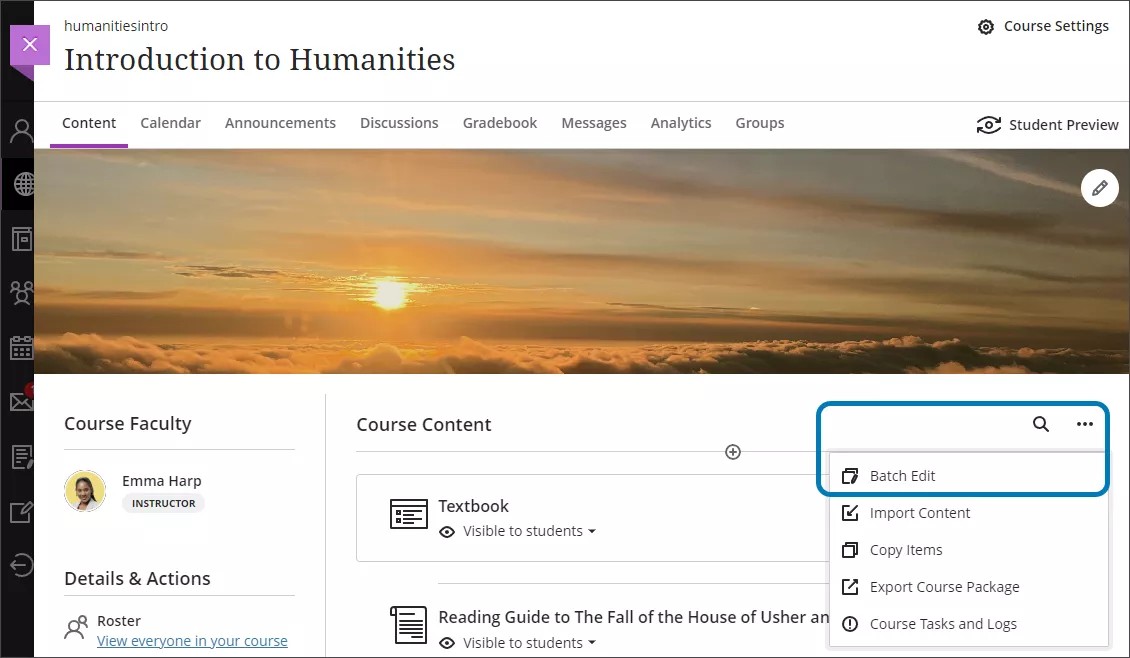
On the course content page, on the right side click on the three dot icon to the right of the search icon. Select Batch Edit.
Once on the Batch Edit page, the content will display as it does on the Course Content page. Click on modules or folders to expand them. Items can be sorted by name, due date, show on date, hide after date, or visibility.
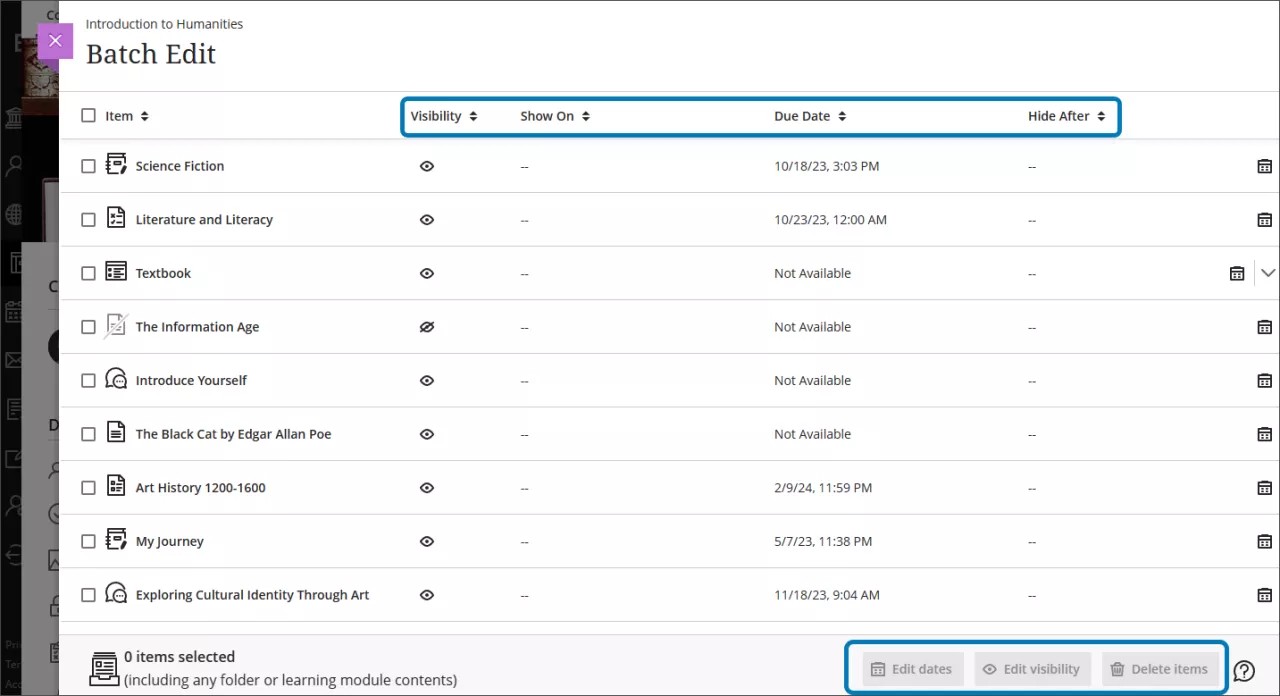
Select items by clicking the box next to the item name that you would like to update, you can select up to 100 items at a time. Then edit dates, visibility, or delete the items. Once an action has been completed, you will receive confirmation in the banner that appears at the top of the panel that the items were adjusted. A green banner shows that all items were successfully updated.
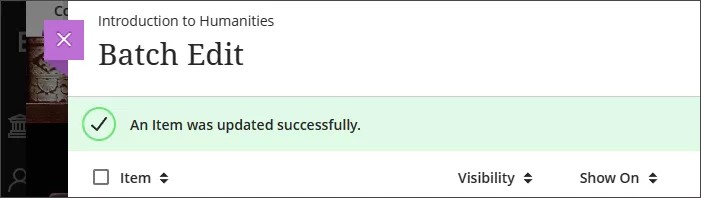
A yellow banner confirms that items were updates, but some items or dates were not able to be updated.

Edit Dates
Batch Edit can be used to update due dates and release condition on items. Due dates can only be updated if the item has an existing due date. Due dates cannot be added using Batch Edit. Dates can be updated by: chaning dates by a number of dates, change dates based on course start date, change to a specific date and time, or change the individual date.
Change dates by number of days
Select items by clicking on the box to the left of the item name. Click Edit Dates. Click on the dropdown menu and select" Change dates by number of days". Enter the number of days the dates should be shifted forward or backward. Then click "Edit Dates".
Example: A snowstorm closes campus for two dates at the start of the semester. Batch Edit can be used to push all days forward 2 days.
